
This solutions article will cover the basic troubleshooting steps to take if you're experiencing issues logging into FieldVu Mobile.
There are 3 troubleshooting solutions to try, starting from basic to more complex as you go down the list to Solution 3.
Start with Solution 1 and work your way down.
TABLE OF CONTENTS
- Solution 1: Reloading Browser
- Solution 2: Update FieldVu Mobile Data
- Solution 3: Clearing FieldVu Mobile Cache
- Help Desk Ticket Submission/Support
Solution 1: Reloading Browser
- Completely close out of all of your browser windows
- Reopen the browser to FieldVu Mobile and try logging in
Solution 2: Update FieldVu Mobile Data
- Completely close out of all of your browser windows
- Re-open the browser to the FieldVu mobile page
- Click the "Update" button below the login portion
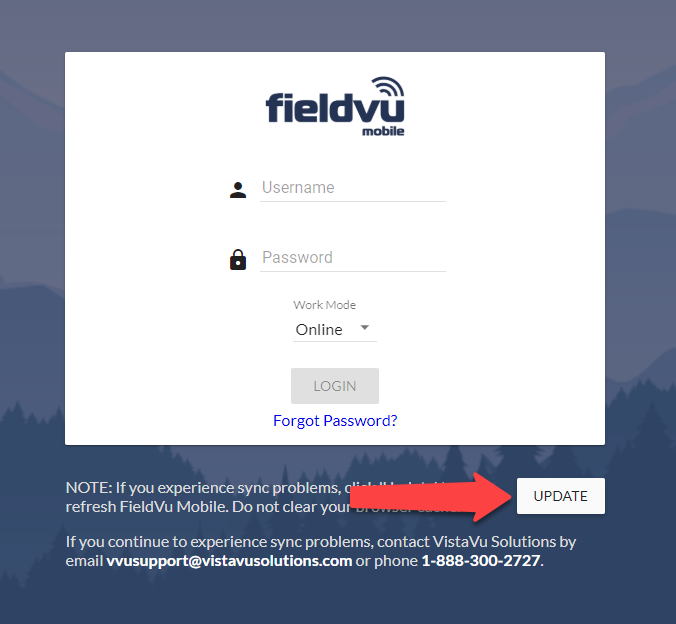
4. After updating, try logging in.
Solution 3: Clearing FieldVu Mobile Cache
- Navigate to the FieldVu Login Page
- Press F12 to bring up Developer Tools
- Your screen will possibility look like below. If the "Application tab doesn't appear near the top right, click the 2-arrow symbol for a drop-down list.
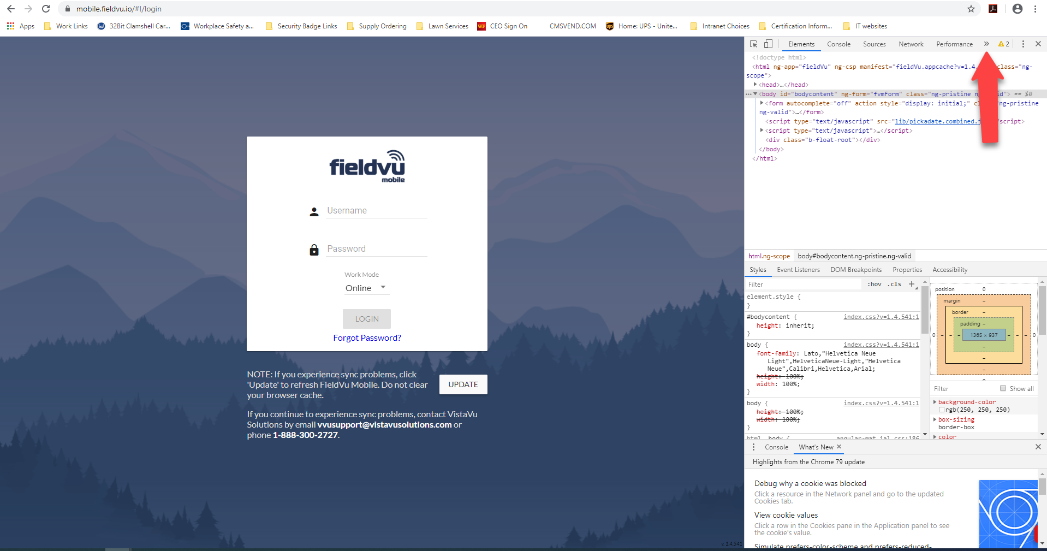
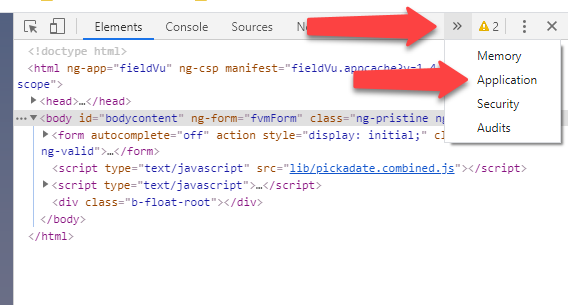
(Zoomed in Photo for Drop-down list and Application tab)
4. Once you click the "Application Tab", the developer tab will display and look like the screenshot below.
a. Depending on the Browser, Click "Clear Storage" or "Storage" on the left column.
b. Make sure "IndexeDB" isn't checked, if it is, uncheck it.
c. Click the "Clear site Data" button
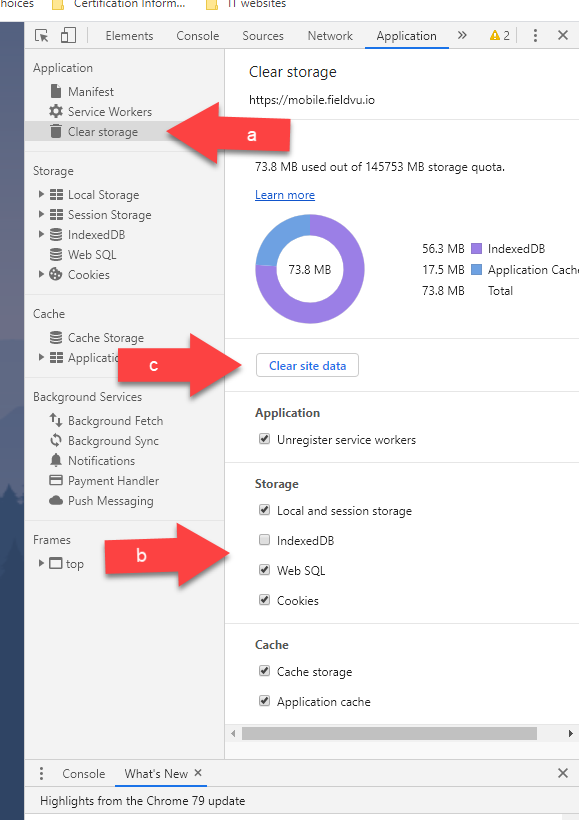
5. Try logging into FieldVu Mobile
Help Desk Ticket Submission/Support
If following the solutions provided above do not solve your problem, please contact the SEF Energy Help Desk for support through the following methods:
- SEF Energy Freshdesk support Portal
- SEF Energy support e-mail