KPA – Single Sign On instructions
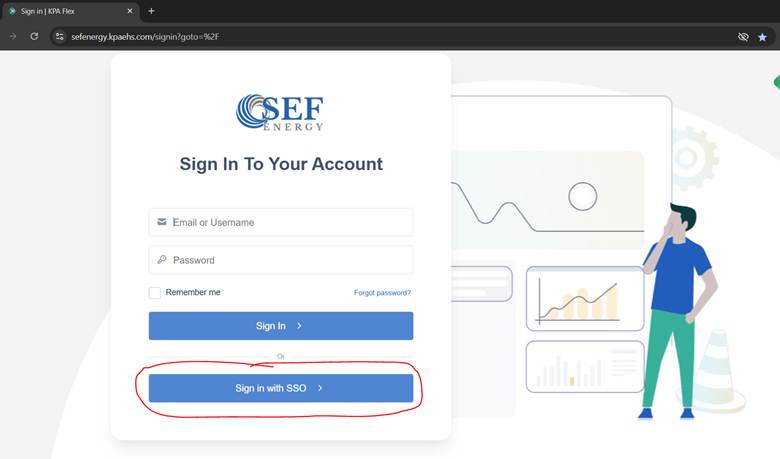
1. Go to https://sefenergy.kpaehs.com/ and on the sign in page you will click Sign in with SSO
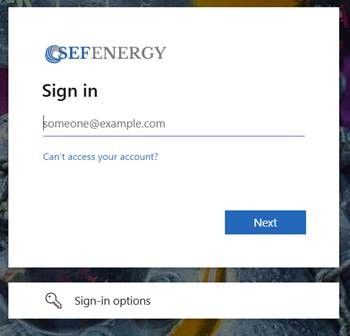
2. You will then enter your company email and then your password(note: This is the same password you use to login to your computer and UKG). It will then text you a code to enter.
3. You should now be on the KPA home screen
SSO from All apps page
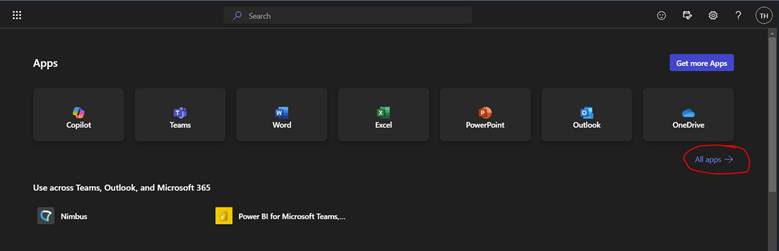
1. You will go to the all apps page and you will sign in - https://www.office.com/apps?auth=2 – and once logged in you will click all apps
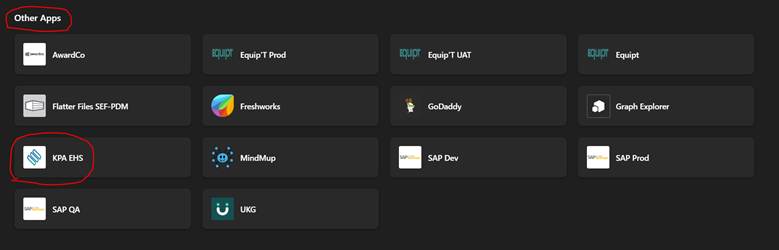
2. You will then scroll down to the section that says Other Apps and click KPA EHS
3. You should now be on the KPA home screen
My Apps SSO Sign In
1. Going through the My Apps Page - https://myapplications.microsoft.com/ - after you sign in you will click KPA EHS
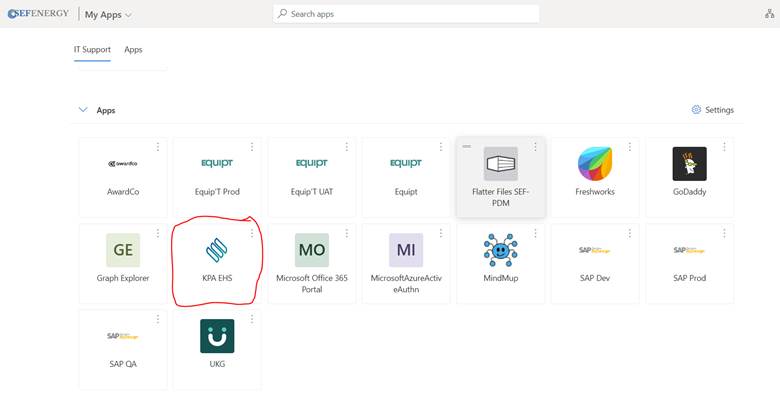
2. You will now be at the KPA home screen
KPA - Mobile Single Sign On Instructions
1. On first login it will ask Company you will enter sefenergy make sure its all lower case and no space.
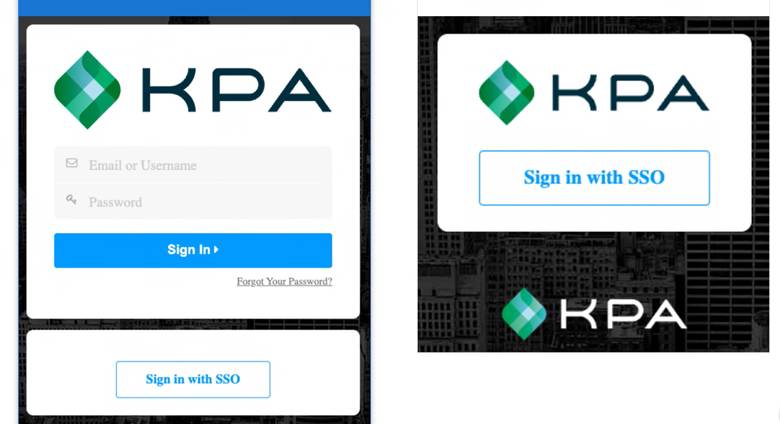
2. From the KPA Flex app you will see one of these screens. You will then click Sign in with SSO. You will then enter your Microsoft credentials and you should be logged in.
Was this article helpful?
That’s Great!
Thank you for your feedback
Sorry! We couldn't be helpful
Thank you for your feedback
Feedback sent
We appreciate your effort and will try to fix the article