Sales Order Using Fixed Price
Must Check the Requested Date on Line Item and General tab
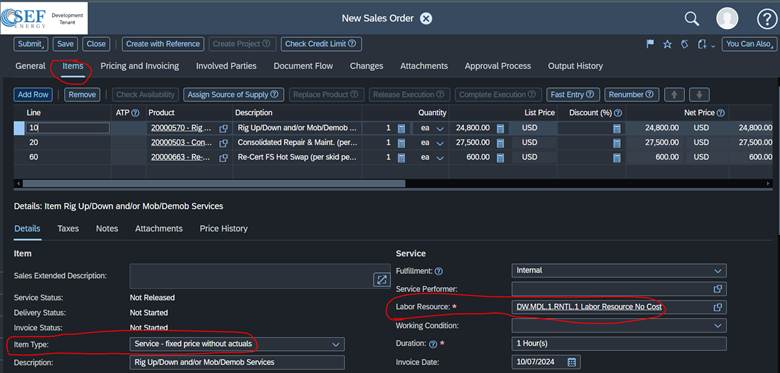
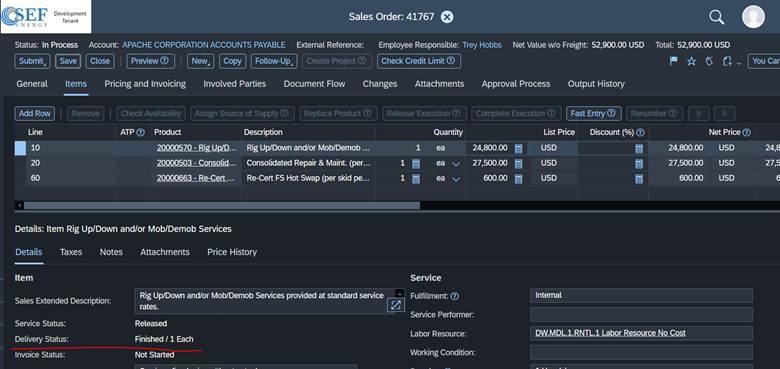
1. You will create the new Sales Order and add all of you general information. Make sure to also check that the Requested Date is the day of creation or before the planned invoice date, it also needs to be in the month you want revenue recognized or it will cause errors during invoicing. Then go to Items tab. Here you will add your services, while adding them you will need to change the item type to Service – Fixed Price Without Actuals and add the labor resource, working on getting this to default a labor resource You will go through and add all your services this way.
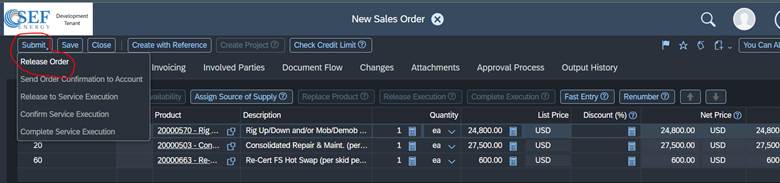
2. You will then either save and come back to add more or go to submit -> Release Order if you have everything you need
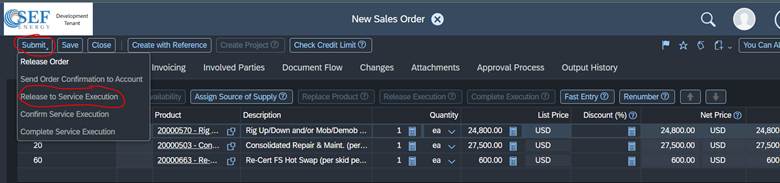
3. It will take you back to the Sales Order screen, you will then reopen the Sales Order and Click Submit -> Release to Service Execution and this will move it to In Process
4. From here as you want to release an item you will go into the sales order and select the item that is ready to bill and click Complete Execution.
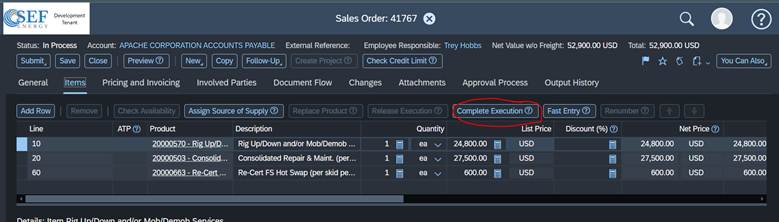
5. After you complete execution, that line will be recognized and ready to invoice.
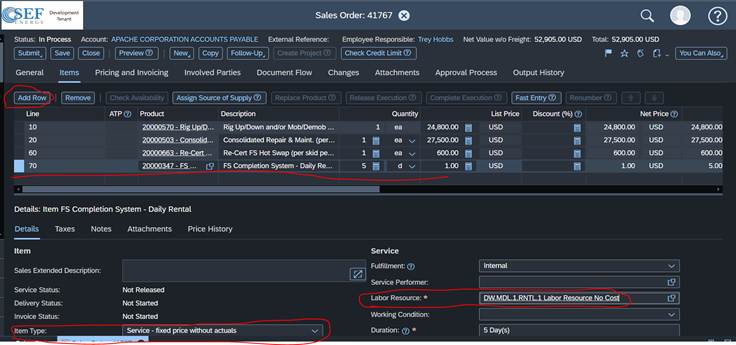
6. You can keep adding to the sales order. You will have to add row and change the Item type and labor resource again. You will also need to make the requested date is changed to when you want the revenue to recognize.
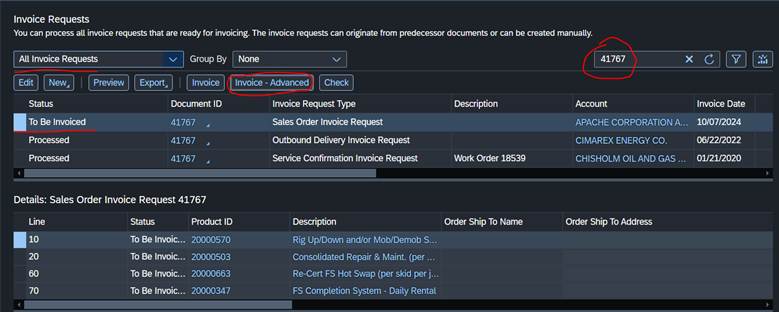
7. Once all the lines have been completed you can go to Customer Invoicing -> Invoice Request and search for the Sales Order number and it should show up. You will then select it and click Invoice Advanced if you have multiple documents to combine or just invoice if its only the one document.
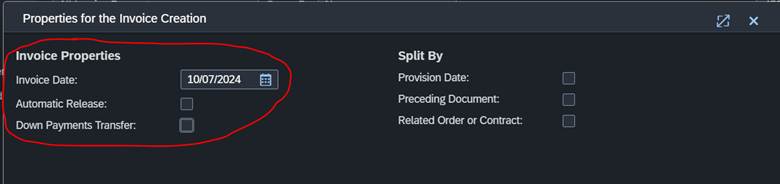
8. You will then put the invoice date and uncheck the Automatic Release and Down Payment Transfer check boxes and click Ok and this will bring you to the invoice screen.
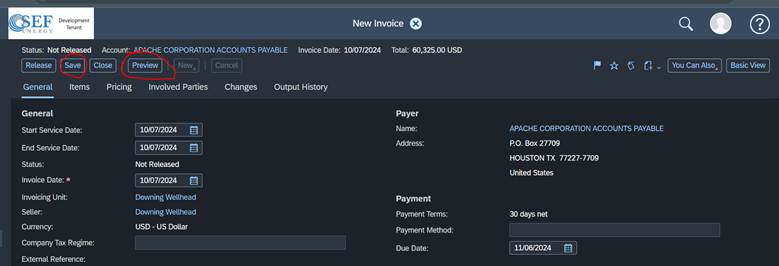
9. You will go to View all and verify all the information and add the notes to the invoice, you can check a lot of it by clicking preview. Once that is all added you will click Save and the invoice will be made.
Cancel Sales Order Steps
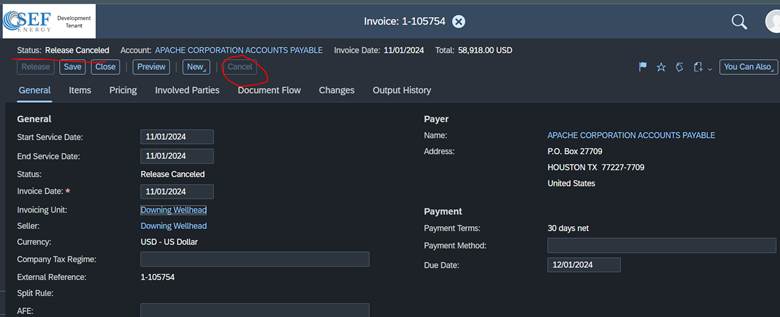
1. You will first need to verify with Shellie that its ok to cancel the invoice, if its ok to cancel then you will go into the invoice and click cancel and once it brings you to the next screen you will release the cancellation invoice. The invoice is now cancelled and you will see release discarded as status.
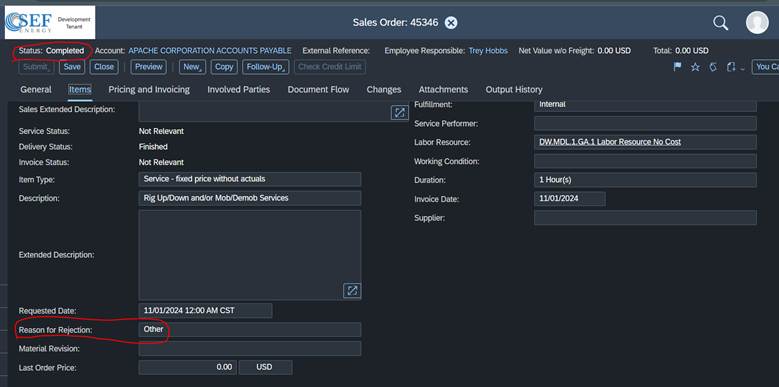
2. Once the invoice is cancelled you can then modify the Sales Order. If you messed up on the requested dates or other dates you will need to reject those lines and add them back with the correct date. If you are cancelling the whole sales order you will also reject the lines by entering a reason for rejection
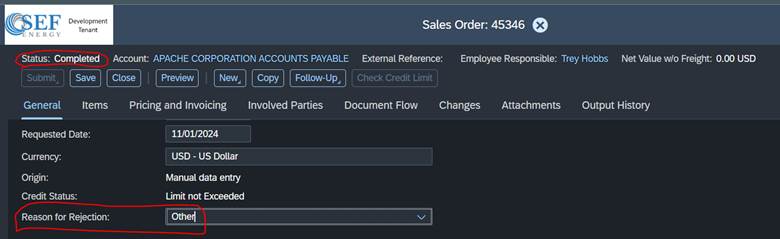
3. You will also enter reason for rejection on the General tab for the whole document and this will cancel the sales order.
Was this article helpful?
That’s Great!
Thank you for your feedback
Sorry! We couldn't be helpful
Thank you for your feedback
Feedback sent
We appreciate your effort and will try to fix the article